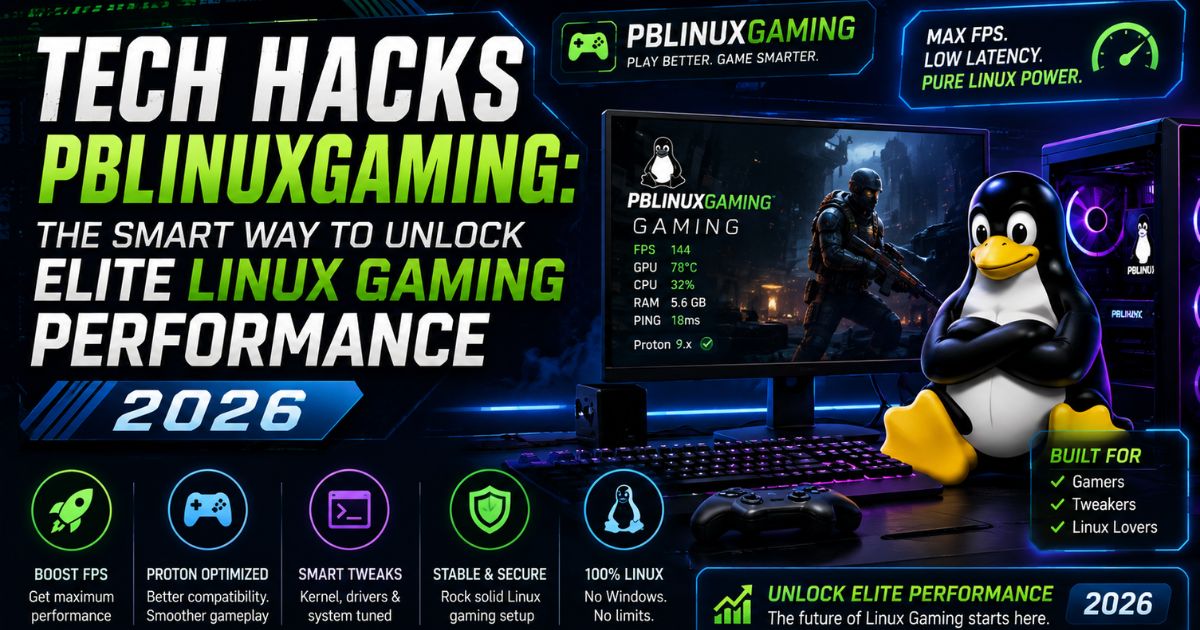
Linux gaming has stopped being a hobbyist experiment and turned into a genuine alternative to Windows. Between Steam Deck’s success, Proton’s rapid maturity, and Valve’s continued investment in the Vulkan ecosystem, more gamers are switching every year, and asking the same question: how do you actually get the most FPS out of a Linux gaming rig?
That’s exactly what Tech Hacks PBLinuxGaming is about. It’s a practical, no-fluff collection of tweaks, tools, and settings that take a stock Linux install and turn it into a tuned gaming machine. This guide walks through distro selection, driver setup, Proton and Vulkan optimization, kernel tweaks, essential tools, network latency fixes, and troubleshooting, everything you need to squeeze out every last frame in 2026.
What Is Tech Hacks PBLinuxGaming?
Tech Hacks PBLinuxGaming refers to a structured set of performance techniques built specifically for gaming on Linux. It isn’t one single tool or app, it’s a methodology that combines driver optimization, compatibility layers like Proton, kernel-level tuning, and monitoring utilities to close the performance gap with Windows.
The goal is simple: reduce input latency, eliminate stutter, boost frame rates, and make game launches reliable, without turning your desktop into a full-time maintenance project.
Common Gaming Challenges on Linux
Even with how far Linux gaming has come, a few recurring pain points still trip up new users:
- Shader compilation stutter during the first few minutes of a session
- Anti-cheat systems that historically blocked Linux entirely
- GPU driver installation confusion, especially for NVIDIA users
- Games that need manual Proton version switching to launch correctly
- Audio latency and controller detection issues on some distros
- Confusing terminal commands for basic performance tweaks
None of these are dealbreakers anymore, but they explain why a step-by-step optimization approach matters more on Linux than on a plug-and-play Windows setup.
How Linux Gaming Has Evolved
Linux gaming used to mean native ports, a handful of playable titles, and constant Wine troubleshooting. That changed dramatically after Valve introduced Proton in 2018 and doubled down on it with the Steam Deck.
Today’s Linux gaming stack looks completely different:
- Proton and Steam Play let the vast majority of the Steam library run without native ports
- Vulkan has replaced OpenGL as the default modern graphics API, cutting driver overhead significantly
- Kernel-level sync improvements (Esync and Fsync) reduced translation overhead between Windows-style threading and the Linux kernel
- Anti-cheat vendors have started shipping Linux-compatible kernel modules, opening up competitive titles that were once impossible to run
- Community-built kernels and Proton forks (like Proton GE) push performance further than the defaults
The result is a platform where many titles now run at 95-100% of native Windows performance, and a growing number of CPU-bound games actually run faster thanks to Vulkan’s lower overhead.
Choose the Best Linux Distribution for Gaming
Your distro is the foundation everything else builds on. Some distributions ship gaming-ready kernels and drivers out of the box; others need manual setup.
Best Linux Distros for Beginners
- Pop!_OS – NVIDIA drivers pre-installed, clean interface, minimal setup
- Nobara – Built specifically for gaming with pre-applied patches and codecs
- Bazzite – An immutable, Steam Deck-style image that’s nearly maintenance-free
- Ubuntu LTS – Extremely stable, huge community support, slightly behind on bleeding-edge packages
Best Linux Distros for Experienced Users
- Arch Linux – Rolling release, latest kernels and Mesa/NVIDIA drivers within days of release
- CachyOS – Arch-based with a performance-optimized kernel and CPU-specific package builds
- Fedora – Balanced update cycle, strong Wayland support, good for users who want stability with recent packages
- EndeavourOS – Arch under the hood with an easier installer
Linux Distribution Comparison
| Distro | Base | Best For | Update Style | Gaming Setup Effort |
| Pop!_OS | Ubuntu | Beginners, NVIDIA users | Fixed release | Low |
| Nobara | Fedora | Beginners, all-in-one gaming | Fixed release | Very low |
| Bazzite | Fedora (immutable) | Set-and-forget gaming | Image-based | Very low |
| Ubuntu LTS | Debian | Stability seekers | Fixed release (LTS) | Low-Medium |
| Fedora | Independent | Balanced power users | Fixed release | Medium |
| Arch Linux | Independent | Advanced tinkerers | Rolling | High |
| CachyOS | Arch | Max performance seekers | Rolling | Medium |
Install the Latest Graphics Drivers for Maximum FPS
Whatever distro you pick, your GPU driver setup will make the single biggest difference in gaming performance.
NVIDIA Driver Optimization
Use the proprietary NVIDIA driver rather than the open-source Nouveau driver for gaming, Nouveau lacks the performance tuning needed for modern titles. On Arch-based distros, install via nvidia-dkms; on Ubuntu-based systems, use the Additional Drivers tool or ubuntu-drivers autoinstall. Enable NVIDIA’s DRM kernel mode-setting for smoother Wayland performance and reduced tearing.
AMD Driver Optimization
AMD GPUs use the open-source Mesa RADV driver, which is already highly optimized and updates frequently. Keep Mesa current through your distro’s repositories, and enable the RADV_PERFTEST environment variable flags for experimental performance features on supported titles.
Intel Graphics Optimization
Modern Intel Arc and integrated GPUs rely on the Mesa ANV Vulkan driver. Make sure you’re running a recent kernel (6.8 or newer) for full Arc GPU support, and keep firmware packages updated for stability.
Keep Drivers Updated
Driver updates often include Vulkan extension fixes and game-specific patches. On rolling-release distros this happens automatically; on fixed-release distros, check for updated driver PPAs or COPR repos every few months rather than waiting for the next major OS release.
Proton, Wine, and Compatibility Layers Explained
How Proton Works
Proton is Valve’s Wine-based compatibility layer, built into Steam Play. It translates Windows API calls into Linux-native calls and uses DXVK and VKD3D-Proton to convert DirectX instructions into Vulkan, letting Windows-only games run on Linux with minimal configuration.
When Wine Is Still Useful
Standalone Wine remains useful for non-Steam software and games purchased outside Steam, such as titles from GOG or Epic Games Store when not using a launcher like Lutris or Heroic. It gives more granular control over prefixes for individual applications.
Why Proton GE Often Performs Better
Proton GE (GloriousEggroll’s fork) ships additional patches, codecs, and fixes ahead of official Proton releases. Many competitive and demanding titles run noticeably smoother on Proton GE because it merges community fixes faster than Valve’s official branch.
Check Compatibility Before Installing Games
Before installing a new title, check its compatibility rating on ProtonDB. It shows real user reports on which Proton version works best, along with any required launch options or workarounds.
Helpful Game Launchers
- Lutris – Manages Wine prefixes, GOG, Epic, and emulator installs in one place
- Heroic Games Launcher – Dedicated Epic Games Store and GOG client with Proton support
- Bottles – Sandboxed Wine environments for non-Steam Windows apps
Read More: Tubehalote: Everything You Need to Know About Tubehalote com 2026
Vulkan Optimization for Better Linux Gaming Performance
Enable Vulkan Correctly
Most modern distros include Vulkan support by default, but you need the correct ICD (Installable Client Driver) package for your GPU, vulkan-radeon for AMD, nvidia-utils for NVIDIA, or vulkan-intel for Intel. Missing these packages is the most common reason Vulkan-based games fail to launch.
Verify Your Vulkan Installation
Run vulkaninfo in a terminal to confirm your GPU and driver are detected correctly. If the command isn’t found, install the vulkan-tools package from your distro’s repository.
Vulkan vs. OpenGL
| Feature | Vulkan | OpenGL |
| Driver overhead | Low | Higher |
| Multi-threading | Native support | Limited |
| CPU bottleneck reduction | Strong | Weak |
| Modern game support | Widely used | Legacy titles mostly |
| Fine-tuned control | High (explicit API) | Lower (abstracted) |
Steam Optimization Tips That Actually Improve Performance
Enable Steam Play for All Titles
In Steam settings, under Steam Play, check “Enable Steam Play for all other titles” and select the latest Proton version (or Proton GE if installed) as your default compatibility tool.
Best Steam Launch Options
A few launch option combinations consistently help:
- gamemoderun %command% – applies GameMode’s CPU and I/O optimizations
- mangohud %command% – adds an FPS and frametime overlay
- gamemoderun mangohud %command% – combines both for monitoring plus optimization
- DXVK_ASYNC=1 %command% – reduces shader stutter on some DXVK titles
Manage Shader Cache
Enable “Allow background processing of Vulkan shaders” in Steam’s Shader Pre-Caching settings. This pre-compiles shaders in the background instead of stalling gameplay the first time you encounter new visual effects.
Reduce Background Resource Usage
Disable the Steam overlay for games where you don’t need it, pause cloud sync during active sessions, and close unnecessary background apps like browsers and Discord overlays that compete for CPU and GPU resources.
Kernel and System Tweaks That Deliver Real Performance Gains
Standard Kernel vs. Zen vs. CachyOS Kernel
The stock distro kernel is fine for general use, but gaming-tuned kernels like Zen, Liquorix, and the CachyOS kernel include scheduler tweaks (such as BORE or EEVDF variants), lower latency timers, and CPU-specific optimizations that can meaningfully reduce frame time inconsistency in CPU-bound games.
CPU Governors Explained
The CPU governor controls how aggressively your processor scales clock speed. The performance governor keeps clocks high during gaming sessions, avoiding the small delays caused by the powersave or ondemand governors ramping up speed on demand. Tools like GameMode can switch this automatically.
Optimize the I/O Scheduler
For NVMe and SSD-based gaming setups, the none or mq-deadline I/O scheduler generally performs better than schedulers designed for spinning hard drives, reducing load-time latency.
Adjust Swappiness
Lowering the vm.swappiness kernel parameter (commonly to 10 or lower) tells Linux to avoid swapping to disk unless memory is nearly full, which helps prevent stutter on systems with 16GB of RAM or more.
Huge Pages and Memory Management
Enabling transparent huge pages can slightly reduce memory management overhead in memory-intensive titles, though the benefit varies by workload and is worth testing on a per-game basis.
When Tweaks Don’t Improve Performance
If a kernel or system tweak shows no measurable FPS or frame-time improvement after testing, revert it. Unnecessary tweaks add complexity and potential instability without any real benefit, always benchmark before and after any change.
Essential Linux Gaming Tools Every Gamer Should Install
GameMode
Developed by Feral Interactive, GameMode automatically applies CPU governor changes, I/O priority adjustments, and process niceness tweaks the moment a game launches, then reverts them afterward.
MangoHud
An in-game overlay showing FPS, frametimes, CPU/GPU temperatures, and usage in real time, essential for spotting bottlenecks and confirming whether a tweak actually helped.
CoreCtrl
A GUI tool for AMD GPU and CPU tuning, letting you adjust power profiles, fan curves, and clock speeds without touching the terminal.
GreenWithEnvy
A monitoring and overclocking GUI for NVIDIA GPUs on Linux, useful for tracking temperatures and fan speeds during long sessions.
LACT
A lightweight AMD GPU control tool offering overclocking, undervolting, and power-limit adjustments with a simpler interface than manual sysfs tweaks.
OBS Studio
Beyond streaming and recording, OBS’s Vulkan/OpenGL capture is useful for verifying frame delivery and diagnosing stutter while reviewing recorded footage.
vkBasalt
A post-processing layer for Vulkan games that adds sharpening, color correction, and other visual filters without needing an in-game option.
Reduce Game Loading Times and Storage Bottlenecks
NVMe vs. SATA SSD
NVMe drives offer significantly faster sequential and random read speeds than SATA SSDs, which directly reduces asset streaming stutter in open-world games. If your budget allows, install your active game library on NVMe storage.
Enable TRIM
Make sure periodic TRIM is enabled (fstrim.timer on most distros) to keep SSD write performance consistent over time as game libraries fill up drive space.
Choose the Right File System
Ext4 remains a solid, low-overhead default for gaming drives. Btrfs adds useful snapshotting for system rollback but carries slightly more overhead; XFS performs well for very large game libraries with big sequential files.
Organize Large Game Libraries
Split libraries across multiple drives by usage pattern, fast NVMe storage for actively played titles, larger SATA SSD or HDD storage for your backlog, and use Steam’s built-in library folder management to keep things simple.
Lower Latency for Competitive Gaming
Use a Wired Connection
A wired Ethernet connection consistently delivers lower and more stable latency than Wi-Fi, which matters most in fast-paced competitive titles where every millisecond counts.
Optimize DNS
Switching to a fast, low-latency DNS provider can shave milliseconds off connection setup times and matchmaking server lookups, though it has minimal effect on in-game ping once connected.
Reduce Bufferbloat
Enable Smart Queue Management (SQM) or a similar bufferbloat-reduction feature on your router to prevent large downloads or uploads from delaying game packets during multiplayer sessions.
Router Features That Matter
Look for Quality of Service (QoS) settings that can prioritize gaming traffic, along with support for modern standards like Wi-Fi 6 if you can’t run a wired connection.
Monitor Your Connection
Tools like MangoHud can display network-related frame pacing issues, while simple ping tests to your game server region help confirm whether lag originates from your network or the game server itself.
Optimize Gaming Peripherals on Linux
Controller Support
Most modern kernels natively support Xbox and PlayStation controllers over USB. For DualSense haptics and adaptive triggers, run kernel 6.8 or newer; Bluetooth stability for controllers can vary by distro and may need a firmware or kernel update.
Gaming Mouse Optimization
Tools like Piper or OpenRGB let you configure DPI, polling rate, and RGB lighting for many gaming mice without needing the manufacturer’s Windows-only software.
Keyboard Configuration
Programmable keyboards can be configured through tools like via or QMK-compatible utilities, letting you remap keys and macros directly from Linux.
Improve Audio Latency
PipeWire has replaced PulseAudio as the modern audio server on most distros, offering lower latency and better synchronization for both gaming audio and voice chat.
Troubleshooting Common Linux Gaming Problems
Low FPS
Usually caused by an outdated GPU driver, wrong Proton version, or missing Vulkan ICD package, update drivers and switch Proton versions to compare.
Stuttering
Most often shader compilation stutter; enable Steam’s background shader pre-caching or try Proton GE, which handles shader caching more efficiently.
Screen Tearing
Enable V-Sync in-game or use a compositor with proper tearing prevention; Wayland sessions generally handle this better than X11.
Black Screen on Launch
Try switching Proton versions, verify game files through Steam, and check that your GPU driver supports the game’s required Vulkan extensions.
Missing Libraries
Install the 32-bit compatibility libraries for your distro, since many older titles still rely on 32-bit dependencies even on 64-bit systems.
Audio Problems
Restart the PipeWire service or check that the correct output device is selected in both system settings and the game’s audio menu.
Game Crashes
Check ProtonDB for known workarounds, try an alternate Proton version, and confirm your system meets the game’s minimum driver requirements.
Quick Diagnostic Checklist
- Confirm GPU drivers are current
- Check ProtonDB for the specific game
- Try Proton GE if official Proton fails
- Run vulkaninfo to confirm Vulkan detection
- Enable MangoHud to see real-time performance data
- Verify game file integrity through Steam
Security and Stability Best Practices
Keep Your System Updated
Regular system updates patch security vulnerabilities and often include driver and Mesa improvements that directly benefit gaming performance.
Back Up Important Game Saves
Cloud save syncing isn’t guaranteed for every title under Proton, so manually back up local save folders for games that matter to you, especially before major Proton or kernel updates.
Avoid Unverified Scripts
Only run optimization scripts and kernel tweaks from trusted, well-known sources, random “one-click gaming optimizer” scripts from unfamiliar sites can introduce instability or security risks.
Roll Back Updates When Necessary
If a kernel, driver, or Proton update introduces a regression, most distros support pinning or rolling back specific packages until a fix is released, check your distro’s package manager documentation for the rollback process.
Linux Gaming Performance Checklist
- Choose a gaming-friendly distro (Pop!_OS, Nobara, Bazzite, CachyOS, or Arch)
- Install the correct proprietary or Mesa GPU driver for your hardware
- Enable Steam Play with the latest Proton or Proton GE
- Confirm Vulkan is working with vulkaninfo
- Set launch options: gamemoderun mangohud %command%
- Enable background Vulkan shader pre-caching in Steam
- Consider a gaming-tuned kernel (Zen, Liquorix, or CachyOS)
- Set the CPU governor to performance during gaming sessions
- Use NVMe storage for active game libraries and enable TRIM
- Use a wired connection and enable bufferbloat reduction
- Keep drivers, kernel, and Proton versions updated regularly
- Back up save files before major system updates
Conclusion
Linux gaming in 2026 isn’t a workaround anymore, it’s a legitimate, high-performance platform that can match or beat Windows in a growing number of titles. The difference between a mediocre setup and an elite one usually comes down to a handful of deliberate choices: picking the right distro, keeping drivers current, using Proton GE where it helps, and layering in tools like GameMode and MangoHud to monitor and optimize in real time.
None of these Tech Hacks PBLinuxGaming techniques require deep technical expertise, just a willingness to follow the steps methodically and test what actually moves the needle on your specific hardware. Start with the checklist above, benchmark your results, and build from there. The Linux gaming ecosystem keeps improving every month, and a properly tuned system today will only get faster as Proton, Vulkan, and the kernel continue to evolve.