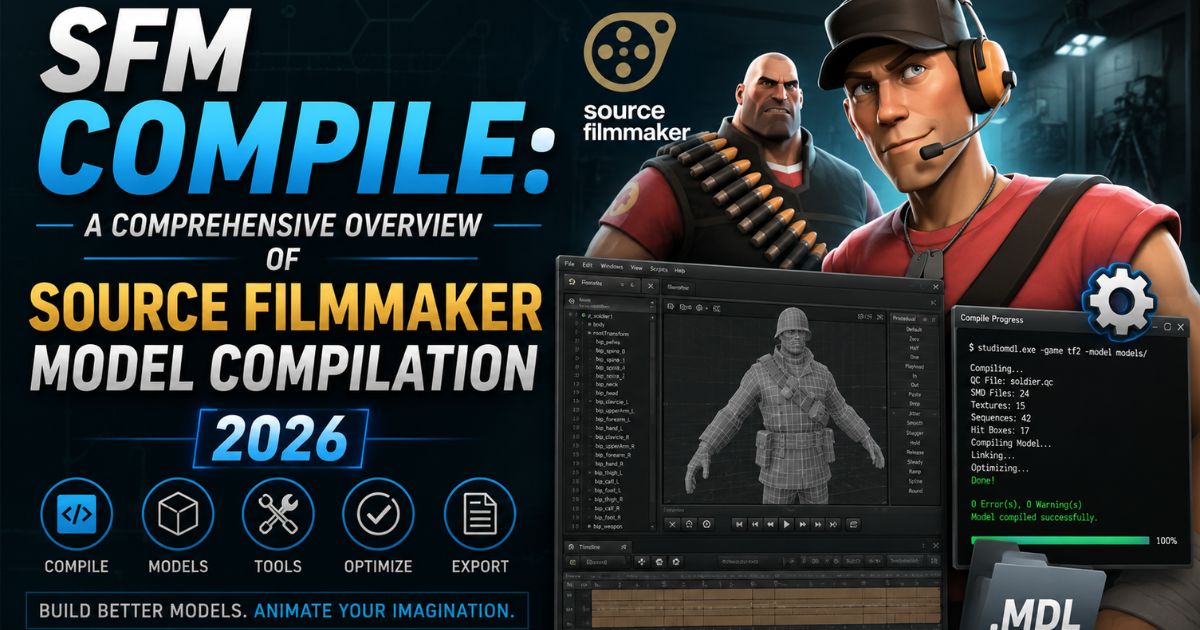
If you’ve spent any time in Source Filmmaker, you’ve probably hit a wall the moment you tried to bring in a model you didn’t download from the Workshop. You drop in an FBX or an OBJ, and SFM just shrugs. That’s not a bug, it’s how the Source engine works. Every custom asset has to pass through a process called SFM Compile before it becomes usable inside the software.
This guide walks through what SFM compile actually is, the tools you need, the exact steps to compile a model, and the mistakes that trip up almost everyone the first time. Whether you’re a total beginner or you’ve already compiled a few props and want to clean up your workflow, this article covers it end to end.
Understanding SFM Compile and Its Role in Source Filmmaker
SFM compile is the process of converting a finished 3D model, mesh, textures, rig, and sometimes animation, into the file format that Valve’s Source engine can actually read. Source Filmmaker doesn’t understand Blender files, Maya scenes, or raw FBX exports. It only understands compiled model packages, and those packages are built through compilation.
At its core, the compiled output is a set of linked files:
- MDL – the main model file SFM loads
- VVD – vertex data
- VTX – optimized triangle/strip data for rendering
- PHY – physics collision data (when applicable)
Without these, a model simply won’t appear in SFM’s Model Browser, no matter how well it was modeled or textured. This is why anyone who wants custom characters, props, or weapons in their scenes eventually has to learn how compilation works.
How SFM Compile Works Inside the Source Engine Pipeline
Think of the Source engine pipeline as an assembly line. Your 3D software produces the raw parts, geometry, UVs, bones, skin weights, and the compiler assembles them into a product the engine can run in real time.
A simplified view of the pipeline looks like this:
- Model is built and rigged in 3D software
- Mesh and animation data are exported as SMD or DMX files
- A QC file is written to describe how the pieces fit together
- StudioMDL (or a front-end like Crowbar) reads the QC and compiles everything
- The output MDL and related files are placed in SFM’s model directory
- SFM loads the finished, optimized model into a scene
Every stage feeds the next one. If any single file is missing a reference or a texture path is wrong, the whole compile can fail, which is why understanding the pipeline, not just memorizing steps, matters so much.
Essential Software and Tools Required for SFM Compile
Before touching a QC file, it helps to have the right toolkit installed. Here’s a quick breakdown of what most creators use:
| Tool | Purpose |
| StudioMDL | Valve’s official compiler that turns SMD/DMX + QC into MDL files |
| Crowbar | User-friendly front-end for compiling and decompiling models |
| Blender / 3ds Max / Maya | Modeling, rigging, and animation |
| Notepad++ / VS Code | Writing and editing QC files |
| VTFEdit | Converting textures into Source’s VTF format |
| GCFScape | Browsing and extracting existing Valve game content for reference |
StudioMDL Command Line Utility
StudioMDL is the engine behind every SFM compile, even when you’re using a graphical tool on top of it. It ships with Source Filmmaker and Source SDK, and it reads a QC script to know exactly which files to combine and how to build the final model. Most beginners never run StudioMDL directly from the command line, they let Crowbar handle it, but understanding that it’s doing the heavy lifting helps when you’re debugging errors.
Crowbar Compilation Tool
Crowbar is, without question, the most popular tool for SFM compile work in 2026. It wraps StudioMDL in a simple interface, shows a readable compile log, and supports both compiling and decompiling models. Instead of typing commands manually, you load your QC file, pick your target game (Source Filmmaker), and hit compile. If something goes wrong, Crowbar’s log usually points to the exact line or file causing the issue, which saves a lot of guesswork compared to raw command-line output.
3D Creation Software for SFM Compile
Blender has become the default choice for most SFM creators, largely because it’s free and has strong SMD/DMX export plugins built by the community. Maya and 3ds Max are still common among people porting professional-grade assets, since their rigging tools are more mature. Whichever software you use, the goal is the same: clean geometry, a properly weighted skeleton, and UVs that match your texture files.
Text Editors and QC File Creation
QC files are plain text, so technically Notepad works, but a code-aware editor like Notepad++ or VS Code makes life easier. Syntax highlighting helps catch typos in commands, and having multiple files open side by side is useful when you’re referencing SMD names, texture paths, and bone names all at once.
Step-by-Step SFM Compile Process
Here’s the full workflow from a raw model to a working SFM asset.
Preparing Your 3D Assets
Start by making sure your model is clean before you even think about exporting. Check for:
- No stray or overlapping vertices
- A properly weighted skeleton (if it’s a character or animated prop)
- UV maps that match your texture files
- Reasonable polygon count for real-time rendering
Skipping this step is the single biggest reason compiles fail later, so it’s worth the extra ten minutes.
Exporting Model Files
Export your mesh and skeleton as SMD or DMX files. Most 3D packages need a plugin for this, Blender’s SMD Tools or the Source Tools add-on are the standard choice. You’ll typically export:
- A reference SMD/DMX (the visual mesh)
- One or more animation SMDs (idle, walk, custom sequences)
- A physics SMD if the model needs collision
Creating the QC File
The QC file is the blueprint of the entire compile. It tells StudioMDL which files to use, where textures live, what the model’s name will be, and how animations should behave. A minimal QC includes commands like $modelname, $body, $cdmaterials, $sequence, and $surfaceprop. Getting this file right is arguably the most important skill in the whole SFM compile process, since a single missing path will stop the compile cold.
Running Compiler Operations
Once your QC and SMD/DMX files are in place, load the QC into Crowbar (or run StudioMDL directly from the command line) and start the compile. Watch the log as it runs, most tools will flag missing textures, broken bone references, or malformed QC commands in real time rather than failing silently.
Testing the Finished Model
After a successful compile, open Source Filmmaker, go to the Model Browser, and locate your new model under the folder you specified in the QC file. Drag it into a scene and check that:
- Textures display correctly
- The model doesn’t clip or distort
- Animations (if included) play smoothly
- Physics behave as expected, if applicable
Read More: PushWiki Com: The Complete Modern Guide to Smarter Digital Information 2026
Best Practices for Successful SFM Compile
Keep Files Organized
Create a dedicated project folder for each model with subfolders for models, materials, and animations. Scattered files across your desktop are a common reason people lose track of which SMD goes with which QC command.
Use Consistent Naming
Match names across your QC file, SMD exports, and texture files exactly, including capitalization. Source engine tools can be surprisingly picky about this, and a mismatched name is one of the most common (and most avoidable) compile errors.
Optimize Models Before Compilation
Heavy, unoptimized models slow down both the compile process and SFM itself. Before compiling, remove hidden geometry, cut down unnecessary polygons, and compress textures where possible. A well-optimized model still looks great, it just doesn’t drag your scenes down.
Common SFM Compile Errors and Solutions
| Error | Likely Cause | Fix |
| “Error opening qc file” | Wrong file path or typo in filename | Double-check the path and file extension |
| Missing texture / purple-black checkerboard | VMT/VTF not referenced correctly | Verify $cdmaterials path and VMT file names |
| Model appears but is invisible | Incorrect material or backface culling issue | Check normals and material assignment |
| “Missing bone” errors | Skeleton mismatch between SMD files | Re-export with matching bone structure |
| Model crashes SFM on load | Corrupted geometry or broken physics mesh | Simplify geometry and rebuild the physics SMD |
| Animations don’t play | Sequence not properly declared in QC | Add or correct $sequence commands |
Most compile problems fall into a small handful of categories: bad file paths, mismatched names, or skeleton inconsistencies. Once you learn to recognize these patterns, troubleshooting gets much faster.
Advanced SFM Compile Techniques
Custom Animation Compilation
Beyond a static pose, you can compile multiple animation sequences into a single model using additional $sequence blocks in your QC file. This lets a single MDL support idle, walk, run, and custom poses without needing separate models for each one.
Creating Custom Physics Models
For props that need to interact with the environment, falling, colliding, or being picked up, you’ll need a dedicated physics mesh referenced through $collisionmodel. Keeping this mesh low-poly and convex (or split into convex pieces) keeps the physics stable and performant.
Using Multiple Skins and Body Groups
Body groups let a single model swap parts (like different heads or attachments), while skins let you switch entire texture sets on the same mesh. Both are defined in the QC file and give a lot of flexibility without needing to compile separate models for every variation.
Beginner Workflow: Where to Start With SFM Compile
Begin With a Low-Polygon Model
Your first compile shouldn’t be an ambitious, fully-rigged character. Start with something simple, a basic prop with no animation, so you can learn the pipeline without fighting a dozen variables at once.
Install and Organize Tools
Get StudioMDL (bundled with SFM), Crowbar, and your 3D software’s export plugin set up before you start. Having a clean, organized tool setup saves a lot of frustration later.
Create Your First QC File
Write a minimal QC file with just the essentials: model name, reference mesh, and material path. Resist the urge to add animations or physics on your first attempt.
Compile, Test, and Repeat
Run your first compile, load it into SFM, and see what happens. It’s normal for the first few attempts to fail, read the compile log, fix one issue at a time, and recompile.
Study Existing Models as References
Decompiling existing Source game models with Crowbar (for personal study, not redistribution) is one of the fastest ways to understand how a working QC file and SMD structure look in practice.
SFM Compile Compared With Modern Game Engine Workflows
Compared to newer engines like Unreal Engine 5 or Unity, the Source engine’s compile process feels distinctly old-school. Modern engines typically support direct FBX import with automatic material and skeleton detection, while Source still relies on manually written QC scripts and separate SMD/DMX exports.
| Aspect | SFM / Source Engine | Modern Engines (Unreal/Unity) |
| Import method | Manual compile via QC + StudioMDL | Direct FBX/GLTF import |
| Configuration | Text-based QC scripting | Visual editor / import settings panel |
| Learning curve | Steeper, more manual steps | Generally more beginner-friendly |
| Flexibility | High once mastered, very granular control | High, but abstracted behind UI tools |
| Community tooling | Crowbar, GCFScape, community plugins | Built-in engine tooling |
This isn’t necessarily a downside, the manual QC-based approach gives experienced creators very precise control over physics, LODs, and body groups. But it does mean SFM compile has a steeper learning curve than dragging a file into a modern engine’s asset browser.
Conclusion
SFM compile can feel intimidating the first time you look at a QC file full of unfamiliar commands, but the underlying process is logical once you break it into stages: prepare your model, export it, describe it in a QC file, run the compiler, and test the result. Every experienced SFM creator went through the same trial-and-error learning curve, and most compile errors come down to a handful of predictable causes, bad paths, mismatched names, or skeleton issues.
Start small, keep your files organized, and don’t be afraid to fail a few compiles while you learn. Once the basics click, SFM compile stops being a barrier and becomes just another tool in your creative process, one that opens the door to bringing almost any character, prop, or animation into your Source Filmmaker scenes.
Frequently Asked Questions
What file format does SFM Compile produce?
SFM compile produces an MDL file along with supporting VVD, VTX, and PHY files that Source Filmmaker loads as a single model.
Do I need Crowbar to compile models for SFM?
No, StudioMDL alone can compile models from the command line, but Crowbar makes the process significantly easier with a graphical interface and readable logs.
Can I compile models without 3D modeling experience?
Basic compiling is possible with pre-made assets, but creating original models still requires at least fundamental 3D modeling and rigging skills.
Why does my model compile but crash SFM?
This is usually caused by corrupted geometry, an overly high polygon count, or a broken bone structure that needs to be simplified or re-rigged.
What’s the difference between SMD and DMX files?
SMD is an older, simpler text-based format, while DMX supports more advanced features like flex controllers and is used for more complex facial animation setups.
Can I decompile existing Source models to learn from them?
Yes, Crowbar can decompile existing models for personal study, but redistributing decompiled copyrighted content is not permitted.